How to Use the Mario Level Editor
Step-by-step guide to building, testing and saving your own level in the browser-based Mario Level Editor on Mario.Game.
4 min read
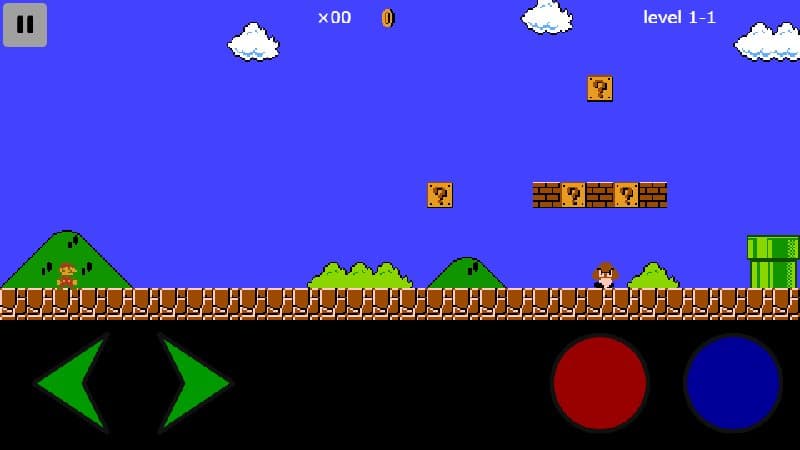
The Mario Level Editor is the Super Mario Bros. demo of Martin Drapeau's open-source Backbone Game Engine. It starts as a playable World 1-1 and turns into an editor with one tap.
Play mode
Use the arrow keys or the on-screen green arrows to move, the red button to jump and the blue button to run. On a desktop you can click the buttons with your mouse or use the keyboard.
Switching to edit mode
Press the pause icon in the top-left corner. The game freezes, and a sprite palette opens at the bottom of the screen. Press it again at any time to go back to play mode and test your changes.
Building
- Pick a sprite from the palette — ground, bricks, ? blocks, pipes, clouds, bushes, coins or enemies.
- Click or tap in the level to place it. Each click places one tile on the grid.
- Scroll the level sideways to keep building beyond the screen.
- To remove something, choose the eraser in the palette and click the tile.
Testing
Switch back to play mode and try your level. Good levels are tested many times: make sure every jump is possible with a running start, and that enemies don't land in places where the player can't avoid them.
Saving
Your level is stored automatically in your browser's local storage. Close the tab, come back later, and it will still be there — on the same device and browser. Use the restart button in edit mode to reset to the original World 1-1.
Level design tips
- Teach, then test. Introduce a new obstacle in a safe spot before using it over a pit.
- Give breathing room. Leave flat ground between hard sections.
- Reward exploration. Hide coins above the visible screen or behind pipes.
- Mind the run-up. A long jump needs a few tiles of flat ground before it.